
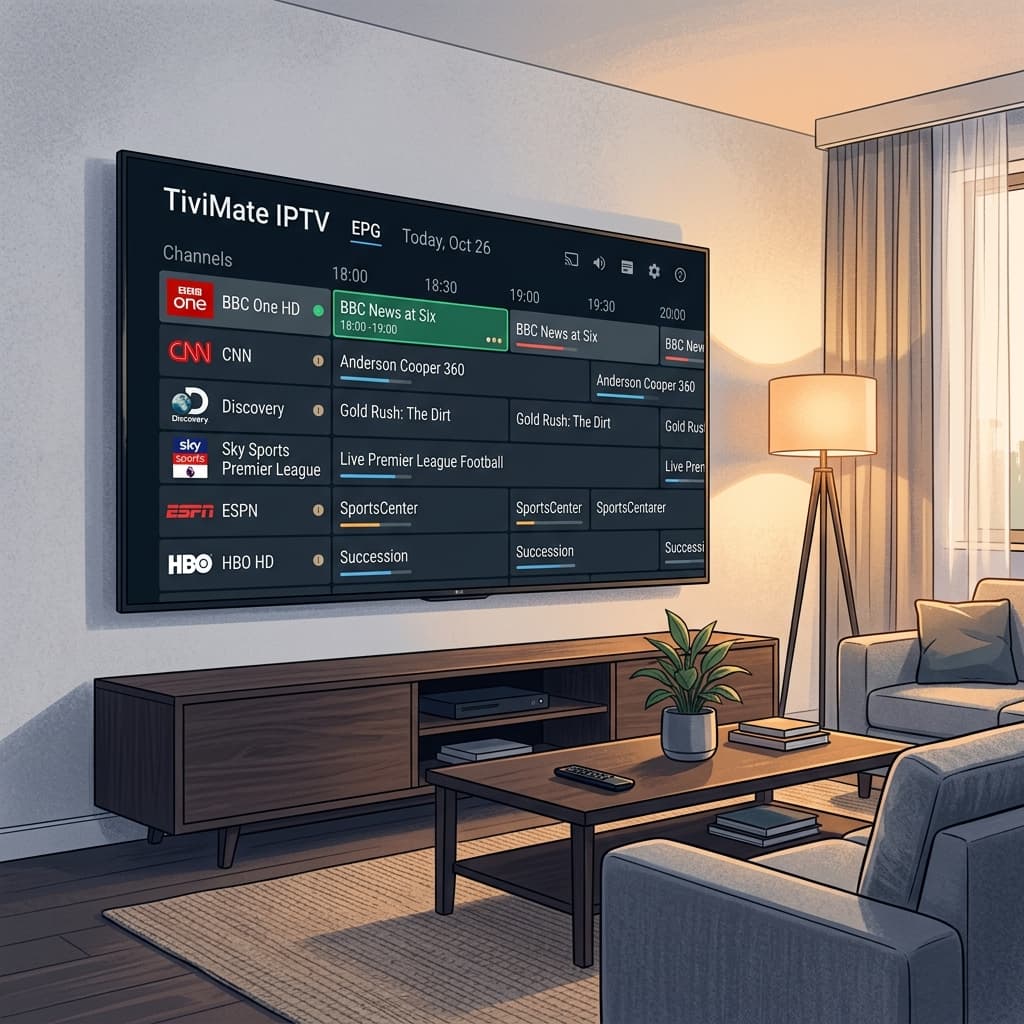
TiviMate is widely considered the best IPTV player available today. It is designed specifically for TV screens (Android TV, Google TV, Firestick) and offers a cable-like experience that is fast, modern, and highly customizable.
Why Choose TiviMate?
- Modern UI: Looks and feels like a traditional cable box guide.
- Fast Performance: Quick channel switching and smooth EPG loading.
- Advanced Features: Catch-up TV, recording, multiple playlists, and picture-in-picture (premium version).
- Xtream Codes Support: Easy login with server, username, and password.
How to Install TiviMate
On Android TV / Google TV (NVIDIA Shield, Chromecast)
- Open the Google Play Store.
- Search for TiviMate IPTV Player.
- Install and open the app.
On Amazon Firestick
TiviMate is not in the Amazon Appstore. You must sideload it using the Downloader app.
- Install Downloader from the Amazon Appstore.
- Enable "Apps from Unknown Sources" in your Firestick settings.
- Open Downloader and enter the official TiviMate APK URL (search for the latest version on the TiviMate Reddit or official site).
- Download and install.
For the full sideloading process with device-specific screenshots, see our guide to sideloading IPTV apps on Firestick.
How to Add Your IPTV Subscription
We recommend using Xtream Codes for the best experience.
- Open TiviMate and select Add Playlist.
- Choose Xtream Codes API.
- Enter the details provided in your welcome email:
- Server Address: e.g.,
http://yourserver.com:8080 - Username:
your_username - Password:
your_password
- Server Address: e.g.,
- Check the box for "Include VOD" if you want movies and series.
- Tap Next. TiviMate will process the playlist and load your channels.
If you were given an M3U link instead of Xtream Codes credentials, choose "M3U Playlist" instead of "Xtream Codes API" at step 2 and paste the URL directly. Our guide on M3U vs. Xtream Codes explains the practical difference between the two login methods.
Configuring the EPG (TV Guide)
TiviMate usually pulls the program guide automatically once your playlist loads, but if channel names show without schedule data:
- Go to Settings > Playlists > [Your Playlist] > EPG source.
- Confirm an EPG URL is listed. If it's blank, check your welcome email for an EPG URL and paste it here.
- Return to the main menu and select Settings > EPG > Update EPG to force a refresh.
- Guide data can take a few minutes to populate fully after the first load — this is normal.
If the guide never loads correctly, see our dedicated EPG not working troubleshooting guide.
Useful Settings to Configure Right Away
- Hardware Decoder: Settings > Player > enable Hardware Decoder for both Video and Audio. This offloads decoding to your device's video chip instead of the CPU, which reduces stutter significantly.
- Channel Logos: Settings > Interface > Channel Logos > enable, so the guide looks closer to a real cable box.
- Parental Controls: Settings > Parental Control lets you PIN-lock specific channel categories, useful if kids share the same device.
- Multi-Screen (Premium): Lets you view up to 4 channels at once in a grid — handy for sports days with overlapping games.
TiviMate Free vs. Premium
TiviMate offers a free version and a Premium version.
Free Version:
- Supports one playlist.
- Basic EPG and channel viewing.
Premium Version:
- Supports multiple playlists.
- Catch-up TV (if supported by your provider).
- Recording to local or network storage.
- Customizable EPG and UI colors.
- Favorites management.
To upgrade to Premium, you need the TiviMate Companion app from the Google Play Store (on an Android phone or tablet) to purchase the license, which you can then apply to your TV device.
Common TiviMate Troubleshooting
Channels Buffering
Go to Settings > Player > Buffer Size and increase it to "Large" or "Extra Large". Also, ensure Hardware Decoder is enabled for both Video and Audio.
EPG Not Loading
Go to Settings > EPG and click Update EPG. Ensure you are using the correct playlist if you have multiple.
VOD Not Updating
Go to Settings > Playlists > [Your Playlist] > Update Playlist.
"Unable to Connect" or "Failed to Load Playlist"
This usually means one of three things: a typo in the server URL (check for extra spaces or a missing http://), an expired or paused subscription, or a temporary network issue. Try opening the server address in a phone browser — if it doesn't load there either, the problem isn't TiviMate.
App Force-Closes on Startup
This is often caused by a corrupted cache after a failed update. Go to Android Settings > Apps > TiviMate > Storage > Clear Cache (not Clear Data, which would remove your playlists). If the crash continues, uninstall and reinstall the app.
Channels Play But EPG Times Are Wrong
Go to Settings > EPG > Time Zone and match it to your local Canadian time zone. Some providers send guide data in UTC by default.
Why Buffering and Loading Issues Happen
Most TiviMate playback issues come down to one of three things: the device's hardware decoder isn't being used (software decoding is slower and less efficient), the buffer size is too small for your connection's stability, or the network path between your device and the streaming server is congested. Adjusting the buffer and decoder settings above resolves the majority of cases without needing to touch your router.
Frequently Asked Questions
Is TiviMate free to use? Yes, TiviMate has a free tier that supports one playlist with standard EPG and live TV viewing. Premium unlocks multiple playlists, catch-up TV, recording, and customization options through a paid license.
Why can't I find TiviMate in the Amazon Appstore? TiviMate isn't distributed through the Amazon Appstore. On Firestick and Fire TV devices, it must be sideloaded using the Downloader app, which is itself available directly in the Amazon Appstore.
Do I need Xtream Codes or can I use an M3U link with TiviMate? Both work. Xtream Codes API login is generally easier to set up and supports more built-in features like VOD categorization, but a plain M3U URL works fine for live channels and guide data.
Why does TiviMate say my EPG is empty right after setup? Guide data usually takes a few minutes to fully download and populate after your first login, especially with large channel lists. If it's still empty after 15–20 minutes, manually trigger Settings > EPG > Update EPG.
Can I use TiviMate on more than one device with the same subscription? That depends on your IPTV provider's connection limit, not TiviMate itself. Check your subscription's allowed simultaneous streams before logging in on multiple devices at once.
Related Guides
Setting up on a Firestick specifically? See our Firestick sideloading guide. Comparing players first? Read TiviMate vs IPTV Smarters Pro. Guide not loading? Check our EPG troubleshooting guide. For every other device and app, see our full IPTV Setup Guide.
Need Help?
Visit our FAQ or contact support for assistance.
Ready to get started with premium IPTV?
Visit Homepage