
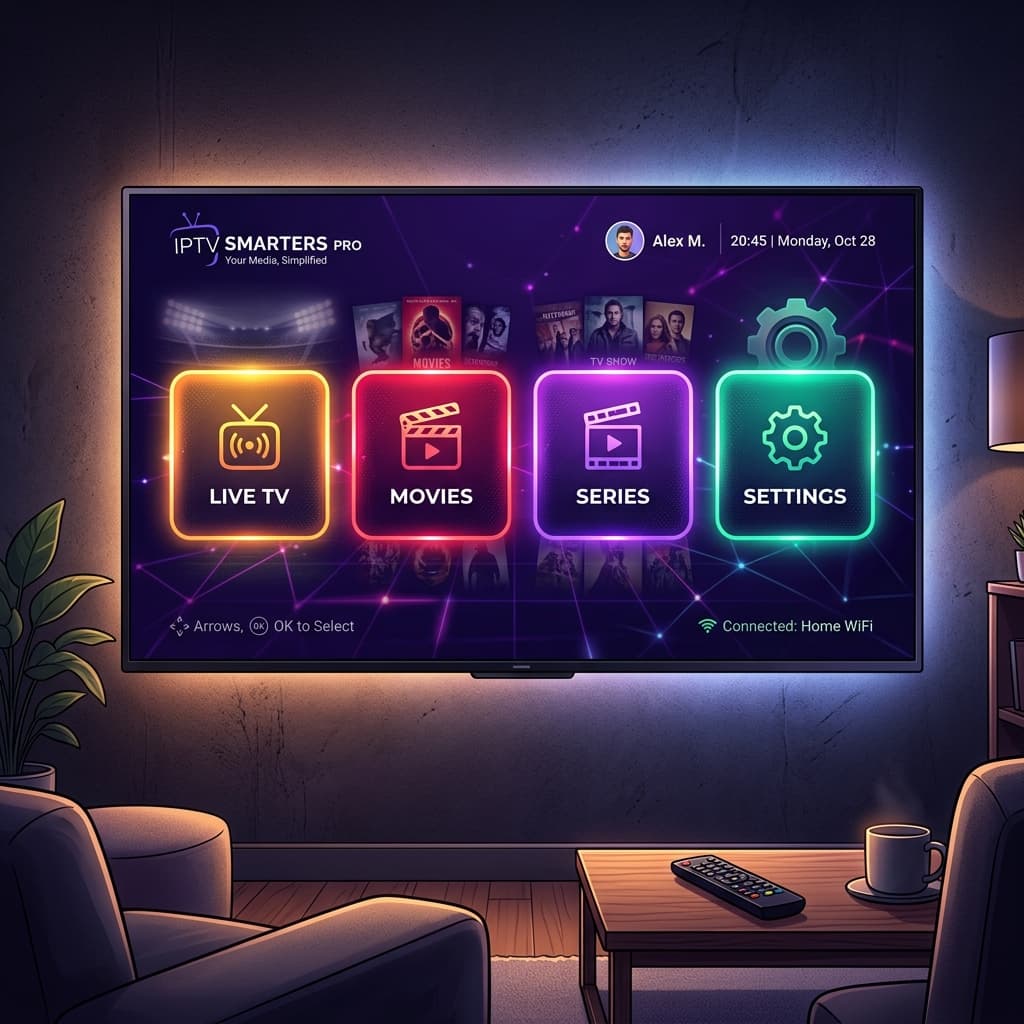
IPTV Smarters Pro is one of the most versatile and widely used IPTV players. Its greatest strength is cross-platform compatibility—you can use the exact same app on your TV, phone, tablet, and computer.
Why Choose IPTV Smarters Pro?
- Cross-Platform: Available on Android TV, Firestick, iOS, Apple TV, macOS, and Windows.
- Easy Setup: Simple Xtream Codes API login.
- Clean Interface: Separates Live TV, Movies, and Series into clear sections.
- Built-in Player: Reliable video playback without needing external apps.
How to Install IPTV Smarters Pro
On Android & Android TV
IPTV Smarters Pro is available directly in the Google Play Store on most Android devices. Simply search for "IPTV Smarters Pro" and install it.
On iOS & Apple TV
Search for "IPTV Smarters Pro" or "Smarters Player Lite" in the Apple App Store and install it. Note that Apple periodically updates its App Store policies for IPTV-category apps, so if the app is temporarily unavailable, "Smarters Player Lite" is the maintained alternative with the same login flow.
On Windows & macOS
Visit the official IPTV Smarters website to download the dedicated desktop applications.
On Amazon Firestick
Smarters is not in the Amazon Appstore.
- Install the Downloader app.
- Enable "Apps from Unknown Sources" in Firestick settings.
- Open Downloader and enter
smarters.app(or the direct APK link) to download and install.
For the full sideloading walkthrough with screenshots, see our Firestick sideloading guide.
How to Add Your Subscription (Xtream Codes)
The easiest and most reliable way to log into Smarters is using the Xtream Codes API.
- Open the app and click Add New User.
- Select Login with Xtream Codes API.
- Enter the following details:
- Any Name: Type "Flick IPTV" (or anything you like).
- Username: Enter your username from your welcome email.
- Password: Enter your password.
- URL: Enter the server URL provided (e.g.,
http://yourserver.com:8080).
- Click Add User.
- Click on the profile you just created. The app will download your Live TV, VOD, and Series data.
Adding a Playlist by M3U URL Instead
If your welcome email includes an M3U link rather than separate username/password/URL fields, choose Load Your Playlist or File URL (M3U URL) at step 2 instead, and paste the full link. See our comparison of M3U vs. Xtream Codes if you're unsure which format you have.
Tips for Best Performance
- Refresh Data: Smarters does not automatically refresh content every time you open it. Occasionally click the Refresh icon in the top right corner to get the latest EPG and new movies/series.
- Player Settings: If you experience playback issues, go to Settings > Player Settings and try switching between Hardware and Software decoding.
- EPG Shift: If your TV guide times are wrong, go to Settings > EPG Timeline and adjust the EPG Shift (Time Offset) to match your local timezone.
- Buffer Settings: Under Settings > Player Settings, increase the buffer duration if you notice frequent freezing on Wi-Fi connections.
- Parental Lock: Settings > Parental Control lets you PIN-protect adult categories or the settings menu itself.
Troubleshooting
"Invalid Details" Error
Double-check your username, password, and URL. Ensure there are no trailing slashes / at the end of the URL and no accidental spaces. This error means the app successfully reached the server but the credentials it sent were rejected — it is almost always a typo rather than a server outage.
Channels Not Playing
Ensure your internet connection is active. If using a VPN, try disconnecting it, as some server ports may be blocked. See our guide to using a VPN with IPTV for which VPN settings are safe to use.
"Connection Failed" or Blank Screen on Launch
This typically means the app cannot reach the server URL at all, as opposed to reaching it and being rejected. Confirm your internet is working in another app, then confirm the server address is typed exactly as provided (including http:// and the port number after the colon).
App Freezes When Switching Between Live TV, Movies, and Series
This is often a cache issue after the app has been running for a long time. Force-close the app completely (not just press Home) and reopen it. On Android, you can also clear the app's cache from Settings > Apps > IPTV Smarters Pro > Storage.
EPG Shows No Program Data
Large channel lists can take several minutes to fully populate the guide after your first login. If it's still empty after 15–20 minutes, tap the Refresh icon or reinstall the playlist.
Why These Issues Happen
Most Smarters Pro problems fall into two categories: authentication issues (wrong or mistyped credentials, expired subscription) and playback issues (network instability, decoder mismatch, insufficient buffer). Knowing which category you're dealing with — a login error versus a mid-stream freeze — points you to the right fix much faster than trying every troubleshooting step at once.
Frequently Asked Questions
Is IPTV Smarters Pro free? Yes, the app itself is free to download and install on all supported platforms. You still need an active IPTV subscription with a provider to actually stream channels through it.
Why does IPTV Smarters Pro say "Invalid Details" even though my login is correct?
This error is almost always caused by a small formatting mistake — an extra space, a trailing slash after the URL, or a missing http:// prefix — rather than incorrect credentials. Retype the URL exactly as it appears in your welcome email.
Can I use IPTV Smarters Pro on both my phone and my TV at the same time? That depends on how many simultaneous connections your IPTV subscription allows, not on the app itself. Check your plan's connection limit before streaming on multiple devices at once.
Why is my EPG (TV guide) empty after I log in? Guide data typically takes a few minutes to fully load after your first login, especially with large channel lists. If it remains empty after 15–20 minutes, use the Refresh icon in the top right corner.
Should I use hardware or software decoding in Smarters? Hardware decoding is faster and uses less battery/CPU on almost all modern devices, so it should be your default. Only switch to software decoding if you see visible glitches or color issues with hardware decoding enabled.
Related Guides
Prefer TiviMate instead? See our TiviMate Setup Guide or compare both in TiviMate vs IPTV Smarters Pro. Using a VPN? Read how to use a VPN with IPTV first. For every other device and app, see our full IPTV Setup Guide.
Need Help?
Visit our FAQ or contact support for assistance.
Ready to get started with premium IPTV?
Visit Homepage