
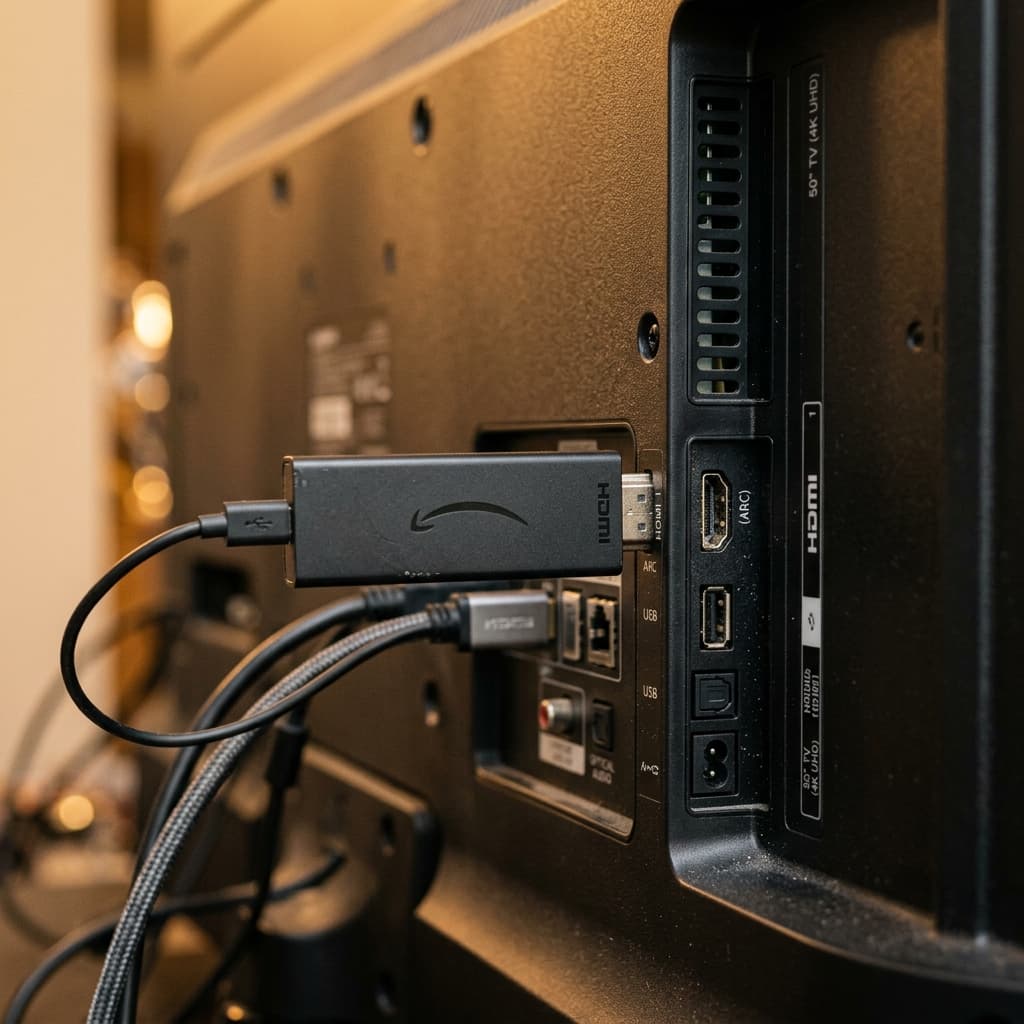
Amazon Firestick is one of the most popular devices for IPTV in Canada. It runs Fire OS, Amazon's own operating system built on top of the Android open-source project. Because it's Android underneath, Firestick supports a wide range of IPTV apps through both the Amazon App Store and manual sideloading — a flexibility that Smart TV platforms like Samsung's Tizen or LG's webOS don't offer.
Which Firestick Model Do You Have?
Amazon currently sells several Fire TV Stick variants, and the model you own affects how smoothly IPTV performs:
| Model | RAM | Best For |
|---|---|---|
| Fire TV Stick (basic/Lite) | 1GB | Light use; can struggle with large EPGs |
| Fire TV Stick 4K | 1.5GB | Solid all-around IPTV performance |
| Fire TV Stick 4K Max | 2GB | Best performance, fastest app switching |
| Fire TV Cube | 2GB | Most powerful, includes Ethernet port built in |
If you're regularly seeing crashes or freezing on a basic Fire TV Stick, upgrading to a 4K or 4K Max model — both of which have more RAM — often resolves it outright, since IPTV apps loading large EPG files are memory-intensive. Our cache clearing guide covers software fixes for the same problem on lower-RAM models.
Recommended Apps for Firestick
| App | Where to Install | Credential Type |
|---|---|---|
| IPTV Smarters Pro | Amazon App Store | M3U or Xtream Codes |
| TiviMate | Sideload via Downloader | M3U or Xtream Codes |
| GSE Smart IPTV | Amazon App Store | M3U or Xtream Codes |
TiviMate is the most feature-complete option, offering a traditional TV guide layout with EPG support. It requires sideloading because it is not available directly in the Amazon App Store.
IPTV Smarters Pro is the easiest to install since it is available directly in the Amazon App Store. Search for it by name.
How to Install IPTV Smarters Pro on Firestick
- From the Firestick home screen, go to Search and type "IPTV Smarters Pro".
- Download and install the app.
- Open the app and select Login with Xtream Codes API.
- Enter your server URL, username, and password from your activation email.
- Tap Add User and your channels will load.
To use M3U instead, select Add Playlist via M3U URL and paste your M3U link.
How to Sideload TiviMate on Firestick
- From Firestick Settings, go to My Fire TV > Developer Options and enable Apps from Unknown Sources.
- Install the Downloader app from the Amazon App Store.
- Open Downloader and enter the TiviMate APK URL (search for the official TiviMate APK download page).
- Install the APK.
- Open TiviMate, tap Add Playlist, and enter your M3U URL or Xtream Codes credentials.
See the full guide at /setup/firestick.
Configuring EPG on Firestick
Most apps auto-load the EPG if you connect via Xtream Codes. If EPG is missing:
- In IPTV Smarters: Go to Settings > EPG Update and trigger a manual refresh.
- In TiviMate: Go to Settings > Playlists > your playlist > Refresh.
Allow 5–10 minutes for the EPG to fully populate on the first load.
Common Firestick IPTV Problems
Buffering on Firestick
- Run a speed test using the Speedtest by Ookla app on your Firestick.
- Switch from Wi-Fi to a wired Ethernet connection using a USB Ethernet adapter.
- In TiviMate, go to Settings > Player > increase the buffer size.
- Restart your router and Firestick.
Channels Not Loading
- Refresh your playlist in the app settings.
- Verify your credentials are still valid by logging in on another device.
- Contact support if the issue persists.
App Crashing or Freezing
- Clear the app cache: Settings > Applications > Manage Installed Applications > [App Name] > Clear Cache.
- Uninstall and reinstall the app.
- Restart the Firestick by holding the Home button and selecting Restart.
- If crashes persist specifically when loading the TV guide, your device may not have enough RAM for the EPG size — see our cache clearing and crash troubleshooting guide for device-specific fixes.
"App Not Installed" or Sideloading Errors
If Downloader fails to install an app, the most common causes are: Apps from Unknown Sources wasn't enabled for Downloader specifically (each app needs this permission individually), the APK download was interrupted, or you're trying to install an older app version over a newer one already present. Re-download the APK and confirm the Unknown Sources toggle is on for Downloader in Settings > My Fire TV > Developer Options > Install Unknown Apps.
Amazon App Store vs. Sideloading: Which Should You Use?
Amazon reviews and approves every app in its official App Store, which is why it carries a smaller catalog than the Google Play Store used on Android TV. Apps like IPTV Smarters Pro and GSE Smart IPTV made it through that review process and are simple one-tap installs. TiviMate — widely regarded as the most feature-complete IPTV app — has never been submitted to the Amazon App Store, so sideloading via the Downloader app is the only way to install it on Firestick.
Sideloading is not a security risk in itself as long as you download APK files from the official developer's website or trusted source rather than random third-party sites. It's a standard, Amazon-supported process (Developer Options exist specifically for this) rather than a workaround or exploit.
Internet Speed Requirements
A minimum of 15 Mbps is recommended for HD channels on Firestick. For 4K channels, 25 Mbps or more is needed, with a stable, low-latency connection. Wired Ethernet is strongly preferred over Wi-Fi for 4K — since Firestick has no built-in Ethernet port, this requires a USB Ethernet adapter connected through the included power adapter's USB port, or a Fire TV Cube, which has Ethernet built in.
Frequently Asked Questions
Which IPTV app is best for Firestick? TiviMate is generally considered the best for its full TV-guide layout and EPG handling, but it requires sideloading. IPTV Smarters Pro is the easiest to set up since it installs directly from the Amazon App Store with no extra steps.
Is sideloading TiviMate on Firestick legal and safe? Yes. Sideloading is an Amazon-supported feature built into Fire OS through Developer Options, and downloading TiviMate's APK from its official source is safe. Avoid downloading APKs from unfamiliar third-party websites.
Why does my Firestick keep returning to the home screen while streaming? This is almost always a memory issue, not a stream problem — the app is being closed by Fire OS to free up RAM. Clearing the app's cache, reducing EPG retention, or upgrading to a Fire TV Stick 4K/4K Max with more RAM usually resolves it.
Do I need a Fire TV Stick 4K for IPTV, or does the basic model work? The basic Fire TV Stick works for IPTV but is more prone to buffering and crashing due to its 1GB of RAM. A Fire TV Stick 4K or 4K Max gives noticeably smoother performance, especially with EPG-heavy apps like TiviMate.
Can I use IPTV on Firestick without sideloading anything? Yes. IPTV Smarters Pro and GSE Smart IPTV are both available directly in the Amazon App Store and support M3U and Xtream Codes logins without any sideloading required.
Related Guides
New to Firestick? Start with our Firestick app sideloading guide, then see our best IPTV apps for Firestick roundup. Once running, keep it fast with our Firestick cache clearing guide, and if you hit stuttering, check our Firestick buffering troubleshooting guide. For every other device and app, see our full IPTV Setup Guide.
Need Help?
Visit our FAQ or contact support. Support is available daily from 9 AM to 11 PM EST.
Ready to get started with premium IPTV?
Visit Homepage