
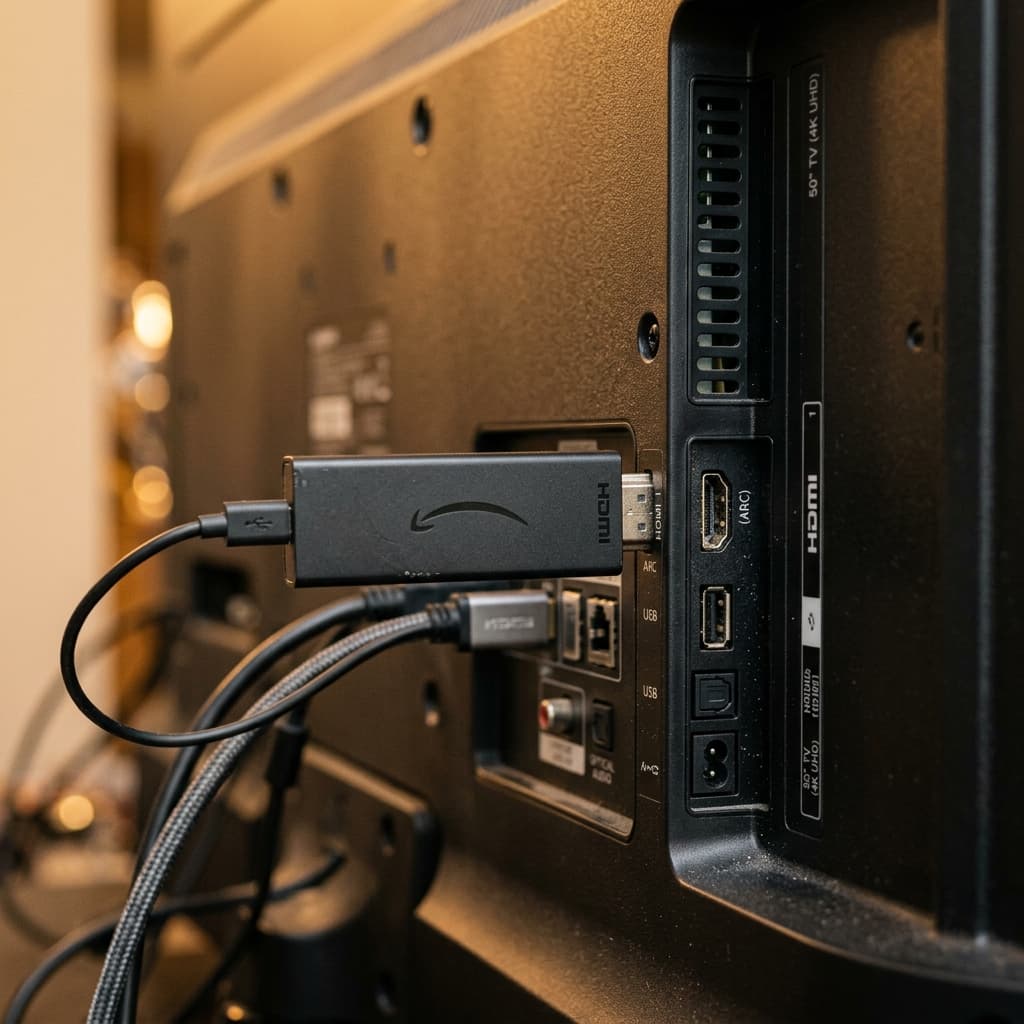
IPTV buffering on Firestick is the most commonly reported issue. Firestick has a limited processor and RAM compared to a dedicated Android TV box, which makes it more sensitive to network and app configuration issues.
Why Firestick Buffers More Than Other Devices
Amazon Firestick uses a relatively low-power processor and has limited RAM (1–2 GB depending on model). When the IPTV app is poorly configured or the network is unstable, the Firestick runs out of buffer space and freezes.
There are three specific reasons Firestick struggles more than a full Android TV box or Smart TV:
- Shared memory: Fire OS runs several background processes (ads, recommendations, sync services) that compete with your IPTV app for the same limited RAM. On a device with only 1 GB of RAM, that leaves very little headroom for video buffering.
- Software decoding fallback: Some Firestick models don't fully hardware-decode every codec a channel is streamed in. When the device falls back to software decoding, the CPU has to do the work instead of a dedicated video chip, which causes stutter and dropped frames, especially on 4K or HEVC (H.265) streams.
- Wi-Fi-only networking on older models: The original Firestick and Firestick Lite have no Ethernet option at all, so they're fully dependent on Wi-Fi signal quality, which fluctuates throughout the day as more devices join your home network.
Common Error Messages and What They Mean
| Message | What it usually means |
|---|---|
| "Please wait, loading..." stuck on screen | The buffer isn't filling fast enough — usually a network speed or Wi-Fi stability issue |
| "Network connection error" | The Firestick lost its connection to the internet or the IPTV server mid-stream |
| "Media error — please try again" | The player failed to decode the stream, often a hardware decoder or codec mismatch |
| Picture freezes but audio keeps playing | Classic sign of insufficient buffer size or a temporary drop in bandwidth |
| App closes/crashes on channel change | Usually low available RAM — too many background apps or a large EPG loaded at once |
Step-by-Step Fixes
1. Increase the App Buffer Size
This is the most effective fix for Firestick buffering.
In TiviMate: Settings > Player > Buffer Size > set to Large or Extra Large.
In IPTV Smarters Pro: Settings > Player Settings > increase the buffer duration value.
A larger buffer means the app downloads more seconds of video ahead of what you're watching, which gives it more room to absorb short network dips without you noticing.
2. Switch to Wired Ethernet
Firestick uses Wi-Fi by default. Wi-Fi causes jitter and packet loss, which directly causes buffering.
Use a USB Ethernet adapter compatible with your Firestick model:
- Firestick 4K / 4K Max / 4K Plus: requires a USB-C to Ethernet adapter
- Older Firestick models: use a Micro USB OTG to Ethernet adapter
Connect via Ethernet and retry — this alone resolves buffering in most cases.
3. Clear App Cache
Old cache can slow down the app's ability to buffer new data.
- Firestick Settings > Applications > Manage Installed Applications
- Select your IPTV app
- Tap Clear Cache
- Reopen the app
For a full walkthrough with screenshots for every Fire TV model, see our guide to clearing cache on Firestick.
4. Close Background Apps
Other apps running in the background consume RAM that your IPTV app needs.
Hold the Home button > select App Switcher > swipe up to close all background apps before streaming.
5. Reduce Stream Quality
If you are watching 4K channels, try switching to the 1080p version of the same channel. Some channels offer multiple quality options in the channel list.
6. Restart the Firestick
A simple restart clears memory leaks. Hold the Home button and select Restart, or go to Settings > My Fire TV > Restart.
7. Move Closer to Your Router
If Ethernet is not an option, reduce the distance between your Firestick and router. Walls and interference cause Wi-Fi degradation.
8. Check for a Firmware or App Update
Fire OS updates and IPTV app updates sometimes fix decoder bugs that cause buffering. Go to Settings > My Fire TV > About > Check for System Update, and check the Amazon Appstore or sideloaded app for a newer version.
9. Change Your DNS Server
Some Canadian ISPs route DNS lookups through slow or congested servers, which can delay a stream's initial connection (though it won't affect mid-stream buffering). Try setting a public DNS such as 1.1.1.1 or 8.8.8.8 under Settings > Network > [Your Network] > Advanced Options > DNS.
10. Confirm Your Internet Speed Is Enough
IPTV needs consistent, not just fast, speed. A connection that tests well on a speed test but has high variance (jitter) can still buffer constantly. See our guide on how much internet speed IPTV actually needs to check your connection against real requirements.
Why This Happens: The Short Version
Buffering is what happens when your Firestick's video player runs out of downloaded video to show before more arrives. It's a timing problem, not usually a "broken app" problem. Anything that slows down how fast data reaches the player — weak Wi-Fi, a crowded network, low RAM, a small buffer setting, or a struggling decoder — creates gaps between what's been downloaded and what's needed next.
When It's Not Your Firestick
If buffering only happens on specific channels and other channels work fine, the issue is server-side — not your device or network. Contact support and report which channels are affected.
Frequently Asked Questions
Why does my Firestick buffer even with fast internet? Fast download speed doesn't guarantee stable delivery. IPTV needs low jitter and packet loss more than raw speed — a connection with occasional drops can buffer constantly even at 100+ Mbps.
Does a Firestick 4K Max buffer less than a regular Firestick? Generally yes. The 4K Max has more RAM and a faster processor, which gives it more headroom for buffering and hardware decoding than the base Firestick or Firestick Lite.
Will an Ethernet adapter really fix buffering? In most cases, yes. Wired connections eliminate Wi-Fi interference and signal drop-off, which are two of the most common causes of Firestick buffering.
How much buffer size should I use in TiviMate or Smarters? Start with "Large." If buffering continues on a stable connection, move to "Extra Large." Larger buffers add a slight delay when switching channels but significantly reduce mid-stream freezing.
Can too many apps installed on my Firestick cause buffering? Yes. Installed apps running background processes (even if not open) can quietly use RAM and CPU cycles that your IPTV app needs for smooth playback. Uninstall apps you don't use.
Related Guides
- Full IPTV Troubleshooting Guide
- General IPTV Buffering Guide
- IPTV on Firestick — Full Setup Guide
- How to Clear Cache on Firestick
- How Much Internet Speed Does IPTV Need
- Firestick Setup Guide
Need Help?
Visit our FAQ or contact support. Support is available daily from 9 AM to 11 PM EST.
Ready to get started with premium IPTV?
Visit Homepage