
This guide focuses on Android TV, Nvidia Shield, and Google TV specifically. For Firestick sideloading steps and troubleshooting, see our full TiviMate Setup Guide.
Why Choose TiviMate?
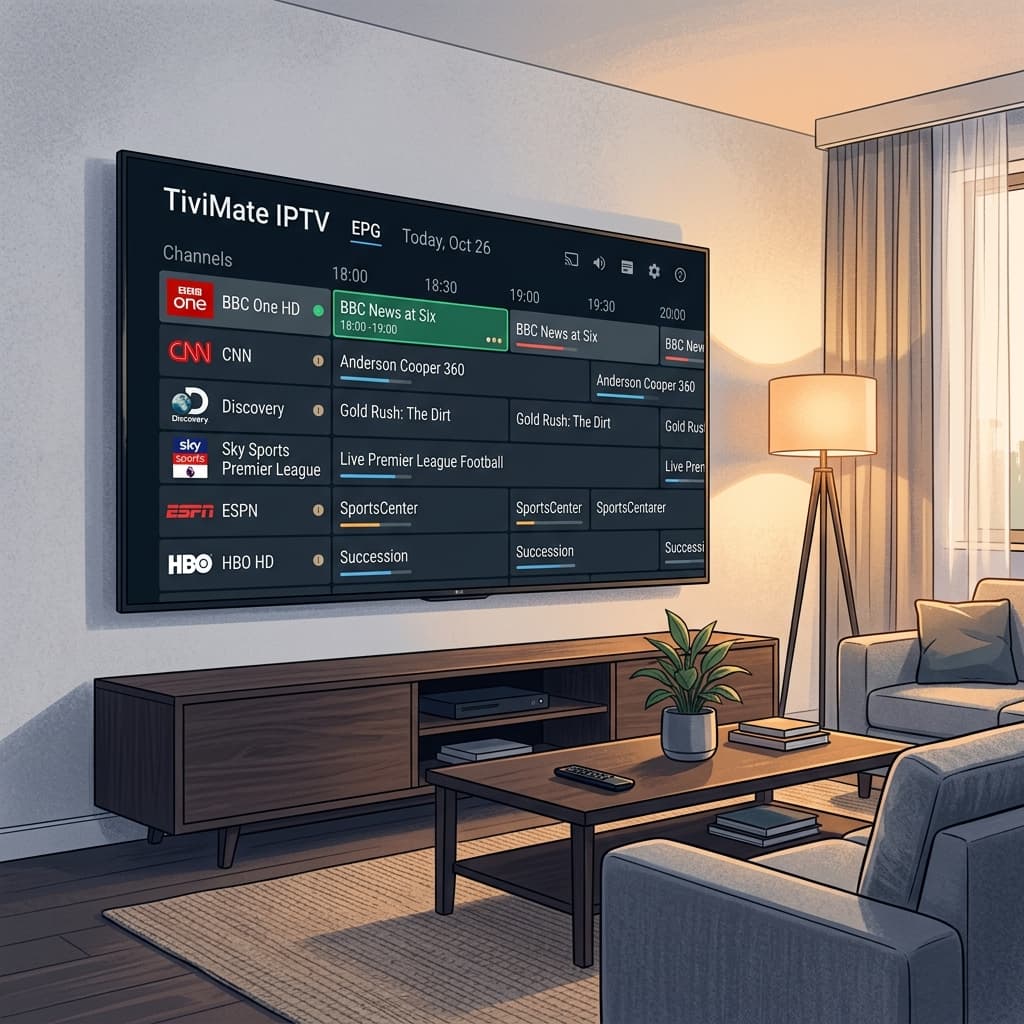
TiviMate is widely considered the absolute best IPTV player available for Android TV devices. It offers a modern, incredibly smooth TV-guide (EPG) interface that looks and feels exactly like a premium cable box.
If you're using an Nvidia Shield, Chromecast with Google TV, or a generic Android TV Box, this is the player you want to use with your Flick IPTV subscription.
Step 1: Install TiviMate
TiviMate is officially available on the Google Play Store, making it very easy to install on most Android TV devices.
- Open the Google Play Store on your Android TV device.
- Go to the search icon and type
TiviMate. - Locate TiviMate IPTV Player (created by Armobsoft FZE) in the search results.
- Click Install.
- Once the installation is complete, click Open.
(If you are using a Firestick, you cannot get TiviMate from the Amazon App Store. You will need to use the Downloader app and search for the TiviMate APK.)
Step 2: Add Your Playlist
When you first open TiviMate, you will be greeted with a button to add your playlist.
- Click on Add Playlist.
- Select Xtream Codes Login (This is the fastest and most reliable method).
- You will be prompted to enter your server details. Enter the credentials we sent you via email:
- Server Address: Enter the Portal URL provided in your welcome email.
- Username: Enter your IPTV username.
- Password: Enter your IPTV password.
- Include VOD: Make sure this is checked if you want to watch Movies and Series.
- Click Next.
- The app will process the playlist. It may take a minute or two to download the channel list and TV guide (EPG).
Step 3: Upgrade to TiviMate Premium (Optional but Recommended)
The free version of TiviMate is great for testing, but it restricts many of the best features. To unlock favorites, catch-up, customizable TV guide updates, and multiple playlists, you need to unlock the Premium version.
- Download the TiviMate Companion app on an Android phone or tablet from the Google Play Store.
- Create an account and purchase the lifetime or yearly subscription.
- Go back to TiviMate on your TV.
- Try to add a channel to your favorites—the app will ask you to unlock Premium.
- Log in with the account you created on the Companion app.
Enjoy Your Streaming!
Your setup is complete! You can now navigate the TV guide using your remote's directional pad. TiviMate automatically updates your channel list and TV guide in the background, so you'll always have the latest content from Flick IPTV.
If you don't have a subscription yet, get your Flick IPTV pass today and experience live TV the way it was meant to be watched!
Related Guides
For every other device and app we support, see our full IPTV Setup Guide.
Ready to get started with premium IPTV?
Visit Homepage