
How to Install IPTV Smarters Pro (Firestick, Android, iOS, Windows)
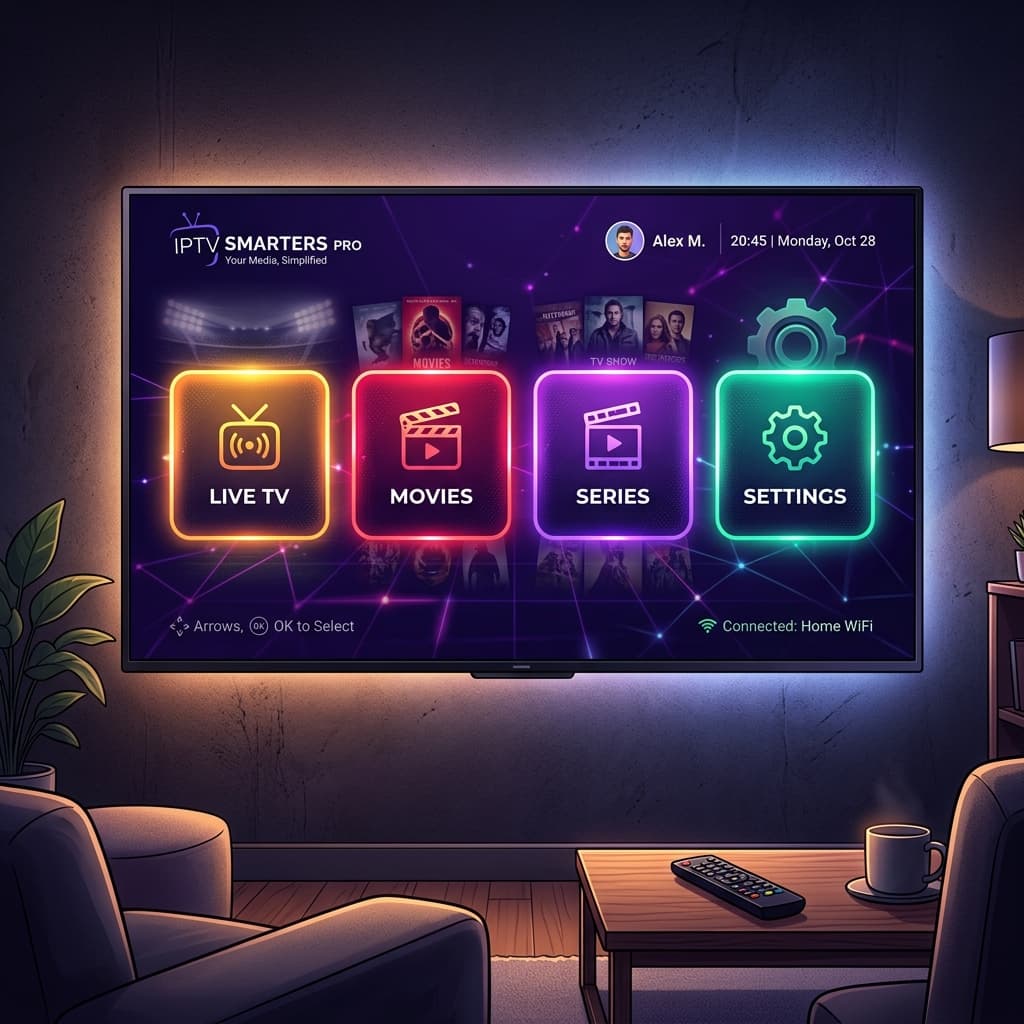
Looking for the complete, all-devices reference? See our IPTV Smarters Pro Setup Guide.
Why IPTV Smarters Pro?
IPTV Smarters Pro is widely considered one of the most reliable and user-friendly IPTV players available today. It supports live TV, VOD (Video on Demand), catch-up, and multiple playlists. Best of all, it is incredibly versatile and can be installed on almost any device you own.
Follow this comprehensive guide to install and configure it on your preferred platform.
Method 1: Amazon Firestick & Fire TV
Because Smarters Pro isn't officially available on the Amazon App Store, you'll need to "sideload" it using the Downloader app.
Step 1: Install the Downloader App
- Go to the Home Screen of your Amazon Firestick.
- Select the Find menu and click on Search.
- Type in
Downloader. - Click on the orange Downloader icon and select Download or Get.
Step 2: Enable Unknown Sources
- Return to the Home Screen.
- Navigate to the gear icon on the far right to open Settings.
- Scroll down and select My Fire TV.
- Click on Developer Options. (If you don't see Developer Options, click on About, then click on your Fire TV Stick name 7 times rapidly to unlock it).
- Select Install Unknown Apps.
- Find the Downloader app in the list and turn it ON.
Step 3: Download IPTV Smarters Pro
- Open the Downloader app.
- Click on the URL search bar.
- Enter the standard Smarters APK download link. (We recommend using the official downloader code
smartersor standard bit.ly links provided by the official developers). - Click Go. The APK file will begin downloading.
- Once downloaded, click Install.
Method 2: Android Phones & Tablets
For Android mobile devices, the process is incredibly straightforward.
- Open the Google Play Store on your Android device.
- Search for
IPTV Smarters Pro(look for the app developed by WHMCS SMARTERS). - Tap Install.
- Once installed, tap Open.
Method 3: iPhone, iPad, and Apple TV (iOS)
Apple users can also easily download the app directly from the App Store.
- Open the App Store on your iOS device or Apple TV.
- Search for
IPTV Smarters ProorSmarters Player Lite. (Note: Due to App Store regulations, the name occasionally changes to Smarters Player Lite, but the functionality remains the same). - Tap Get to download and install the app.
- Tap Open.
Method 4: Windows PC and Mac
If you want to watch IPTV on your computer, Smarters has a dedicated desktop application.
- Open your web browser and navigate to the official IPTV Smarters website:
iptvsmarters.com. - Go to the Downloads section.
- Choose the appropriate version for your operating system (Windows.exe or Mac.dmg).
- Download the file and run the installer.
- Follow the on-screen prompts to install the application, then launch it.
Final Step: Configure Your Subscription
No matter which device you installed it on, the login process is identical. Now you just need to log in using the credentials provided by Flick IPTV.
- Open IPTV Smarters Pro.
- Accept the Terms of Service.
- Select "Login with Xtream Codes API" (This is the most common and reliable method).
- Enter the following details:
- Any Name: Flick IPTV (or whatever you'd like to name it)
- Username: Enter your username from your subscription email.
- Password: Enter your password.
- URL: Enter the server portal URL we provided.
- Click Add User.
The app will now download all the live channels, movies, and series available in your subscription. Grab some popcorn and enjoy!
If you haven't grabbed a subscription yet, start your 24-hour free trial today to test it out!
Related Guides
For every other device and app we support, see our full IPTV Setup Guide.
Ready to get started with premium IPTV?
Visit Homepage