
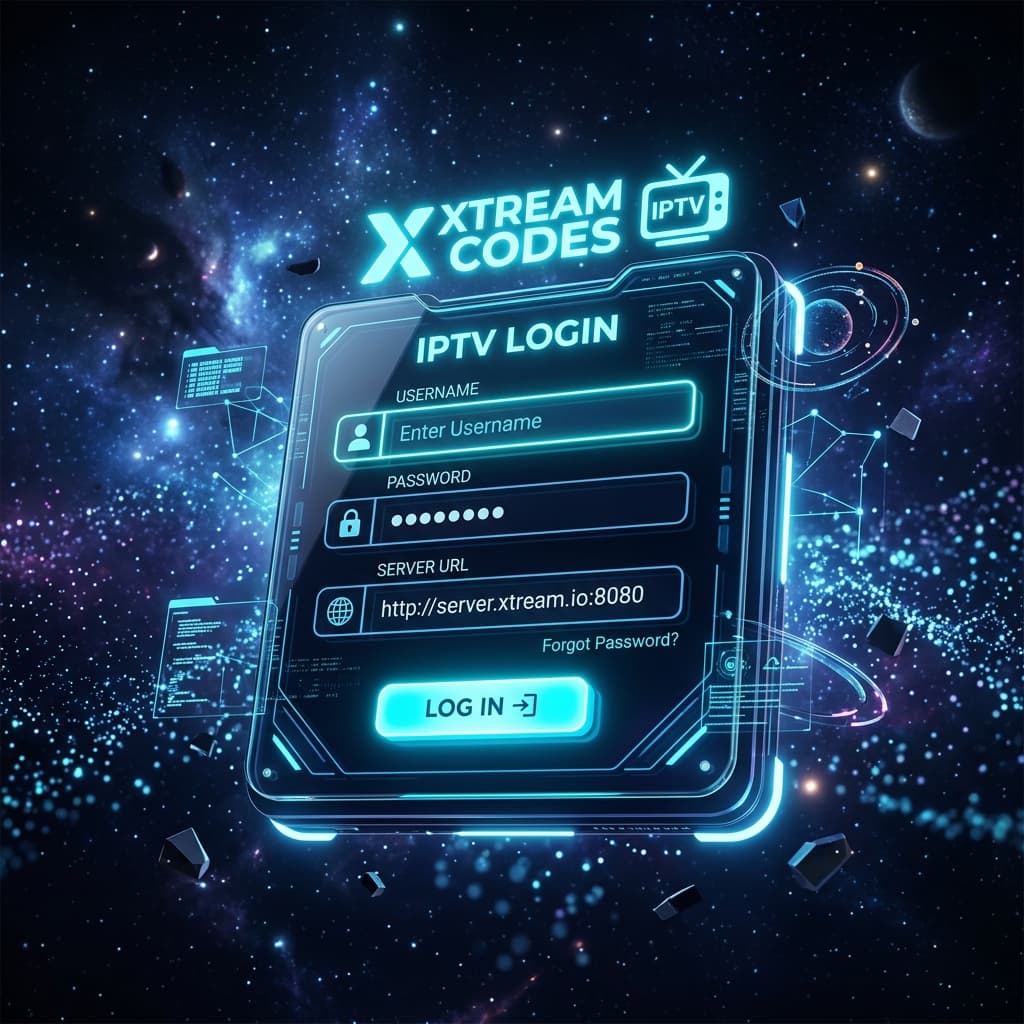
Xtream Codes uses three fields to authenticate you: a server URL, a username, and a password. When any of these is wrong or your subscription changes, login fails. Here is how to diagnose and fix common Xtream Codes errors.
What Are Xtream Codes?
Xtream Codes is an API-based IPTV delivery system. Instead of a long M3U URL, you provide:
- Server URL (e.g.,
http://yourserver.com:8080) - Username (e.g.,
user123) - Password (e.g.,
pass456)
The app connects to the server using these credentials and loads your channel list, VOD, and series automatically.
Read the full comparison at M3U vs Xtream Codes.
Common Xtream Codes Errors
| Error | Cause |
|---|---|
| "Invalid username or password" | Wrong credentials or expired subscription |
| "Server not found" | Wrong server URL format |
| "Connection timeout" | Server unreachable or firewall blocking |
| Channels load but do not play | Subscription tier does not include that content |
| Login works but EPG missing | EPG not enabled or needs refresh |
Fix 1: Check Server URL Format
The server URL must be entered exactly as provided. Common mistakes:
- Missing port number: Should be
http://server.com:8080, nothttp://server.com - Extra slash at the end: Some apps reject trailing slashes — try both with and without
- HTTPS vs HTTP: Enter the protocol exactly as given in your activation email
Correct example: http://yourserver.com:8080
Incorrect example: yourserver.com:8080 (missing http://)
Fix 2: Verify Username and Password
- Copy your username and password directly from the activation email rather than typing them.
- Check for spaces before or after the username or password.
- Usernames and passwords are case-sensitive.
Fix 3: Check Subscription Status
If credentials were correct before but fail now, your subscription may have expired or the account may have been suspended.
Check: Contact support via WhatsApp or email to confirm your account status.
Fix 4: Test in a Different App
If login fails in TiviMate but works in IPTV Smarters (or vice versa), the issue is app-specific. Try:
- Clear the app cache: Device Settings > Apps > [App Name] > Clear Cache.
- Remove and re-add the playlist.
- If the issue persists in one app only, reinstall that app.
Fix 5: Fix in TiviMate
- Open TiviMate and go to Settings > Playlists.
- Tap your playlist.
- Tap Edit and re-enter your server URL, username, and password carefully.
- Tap Refresh.
Fix 6: Fix in IPTV Smarters Pro
- Open IPTV Smarters Pro.
- On the accounts screen, tap the edit (pencil) icon next to your account.
- Re-enter the server URL, username, and password.
- Tap Update User.
Fix 7: Network Firewall or VPN Interference
If you are using a VPN, try disabling it. Some VPN servers block certain ports used by IPTV servers. Similarly, some corporate or hotel networks block custom ports.
Test: Disable VPN and reconnect from your home network without a VPN to verify.
Need Help?
Visit our FAQ or contact support. Support is available daily from 9 AM to 11 PM EST.
Related Guides
Having a different kind of issue? See our full IPTV troubleshooting guide or our M3U playlist problems guide.
Ready to get started with premium IPTV?
Visit Homepage